 Hexalian
Request for Quote — B2B Catalog Mode for Odoo
Replace Add to Cart with Request a Quote. Hide prices, create B2B quotations from your e-commerce catalog.
Request for Quote — B2B Catalog Mode
Replace "Add to Cart" with "Request a Quote" on your Odoo store
Overview
Transform your store into a B2B quote-based catalog
The Request for Quote module replaces the standard "Add to Cart" button with "Request a Quote" buttons throughout your Odoo e-commerce store. Customers browse products, request personalized pricing, and your sales team receives automatic notifications.
Choose from four scope options: enable quote mode for all products, configure per-product on individual product forms, select specific products, or apply by product category.
Each quote request automatically creates a draft Sales Order in the Odoo backend. Sales teams can review requirements, adjust pricing, and convert to formal quotations.
Two professionally designed email templates provide instant notifications: one for the sales team with full request details, and a confirmation for the customer.
Key Features
Everything you need for B2B quote management
Quote Request Flow
Replace "Add to Cart" with "Request a Quote" globally or per product. Customers submit through a modal form with quantity and message.
Hide Prices
Optionally hide product prices entirely, showing "Request Price" instead. Ideal for negotiated or variable B2B pricing.
Auto-Create Quotations
Each quote request automatically creates a draft Sales Order. Sales teams review, adjust pricing, and send formal quotes.
Per-Product Control
Toggle quote-only mode on individual products via a dedicated "Quote" tab in the product form. Mix standard and quote-only products freely.
Email Notifications
Instant email alerts when customers submit quote requests. Includes customer details, product info, and requirements message.
Login Requirement
Optionally require customer login before submitting quote requests. Guest users see a professional sign-in prompt modal.
Quote Scopes
All Products, Per-Product, Selected Products, or Selected Categories. Choose the scope that fits your business model.
Customizable Form
Configure which contact fields appear — Name, Email, Phone, Company, Address, Message — and set required status per field.
Shop Banner
Display an informational banner on the /shop page with customizable text. Choose top or bottom position relative to products.
[Settings] Backend Configuration
Complete control from one centralized settings panel
B2B Quote Settings
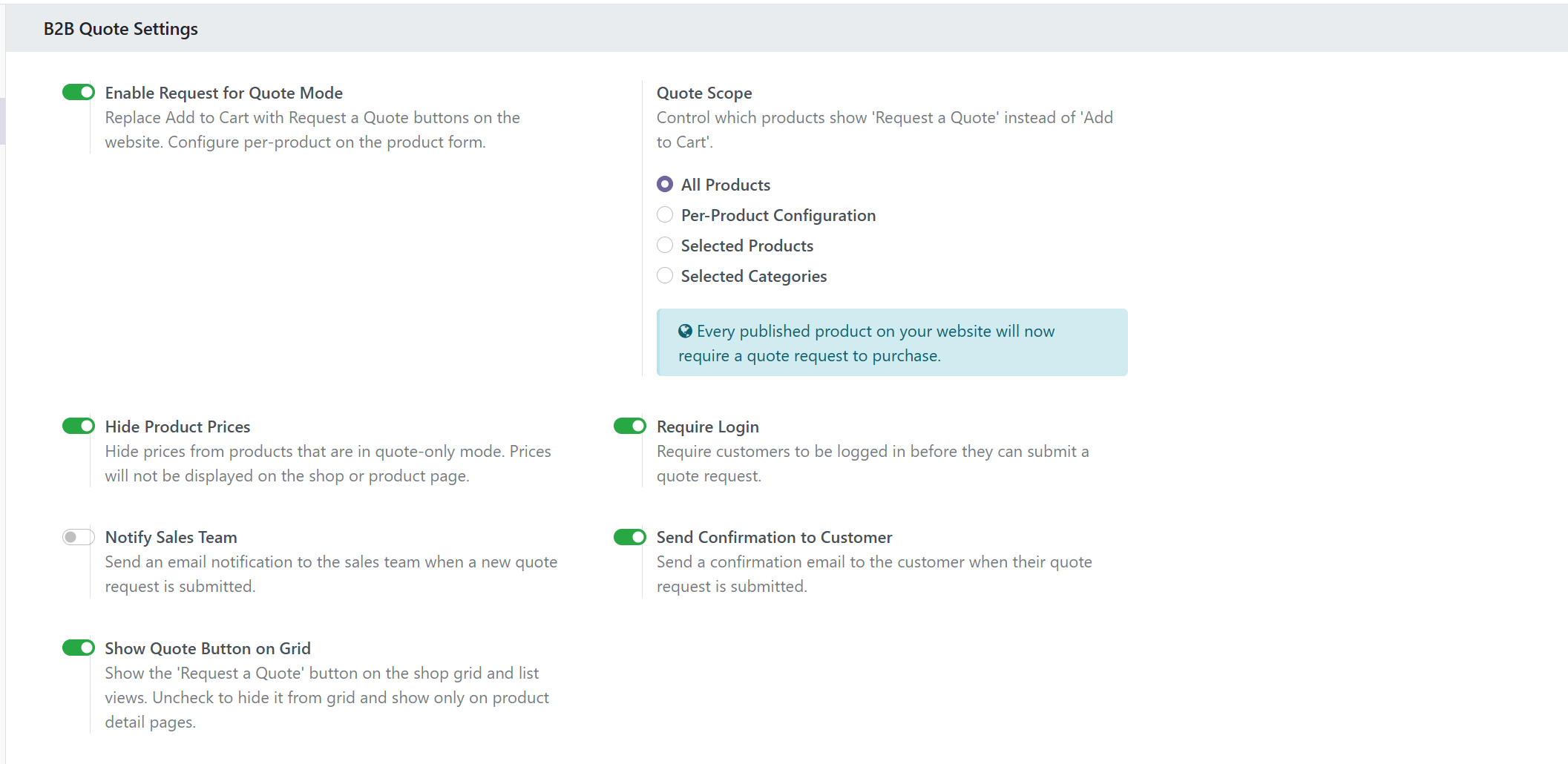
The B2B Quote Settings panel provides all core toggles for the module:
- Enable Request for Quote Mode: Master toggle to activate the feature across your store
- Quote Scope: Choose between All Products, Per-Product Configuration, Selected Products, or Selected Categories
- Selected Products / Categories: Multi-select fields to pick specific products or categories when using those scopes
- Hide Product Prices: Replaces all prices with "Request Price" badges
- Require Login: Forces authentication before quote submission
- Notify Sales Team: Sends email alerts on new quote requests
- Send Confirmation to Customer: Auto-reply confirmation email to the requester
- Show Quote Button on Grid: Toggle the "Request a Quote" button visibility on shop grid/list views
Quote Request Form
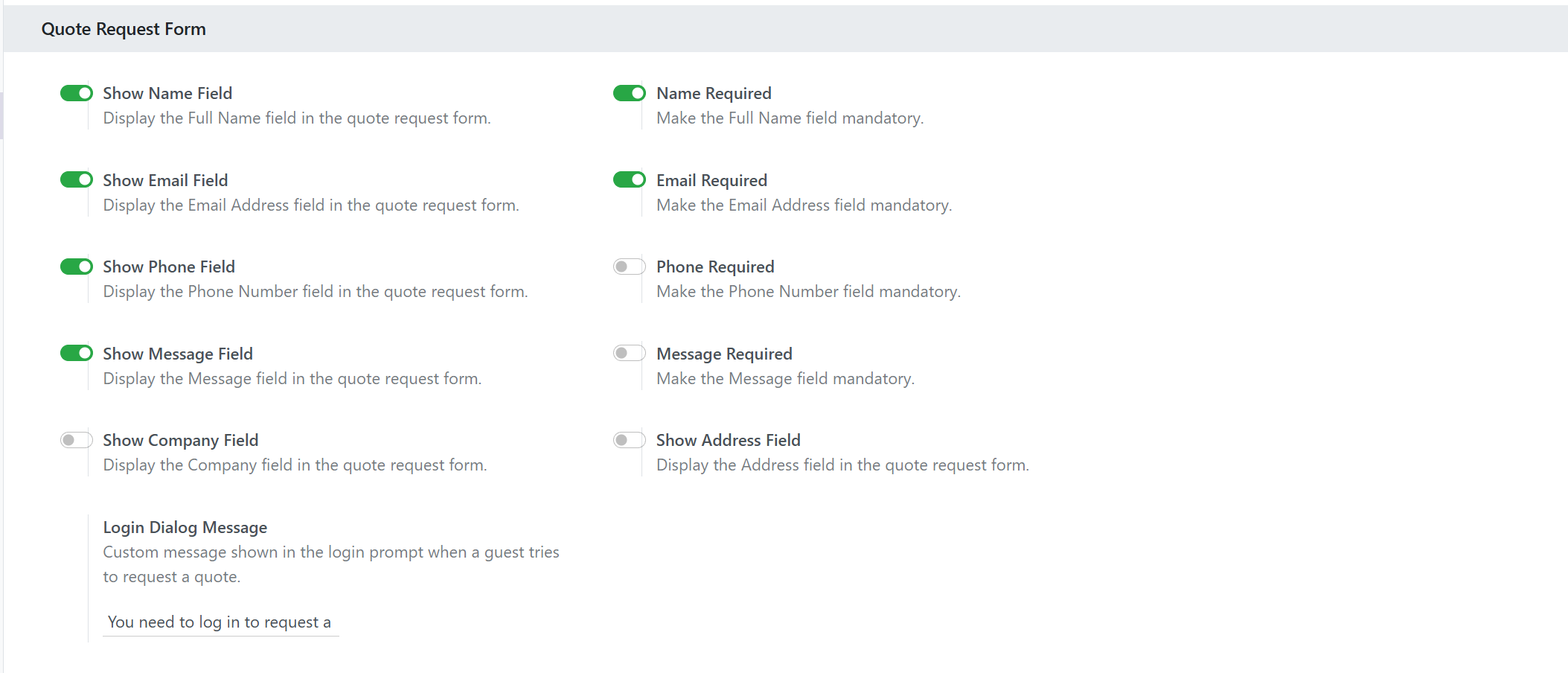
The Quote Request Form section controls the fields presented to customers:
- Name Field: Show/hide and set required status for Full Name
- Email Field: Show/hide and set required status for Email Address
- Phone Field: Show/hide and set required/optional for Phone Number
- Message Field: Show/hide and set required/optional for Message or Requirements
- Company Field: Show/hide and set required/optional for Company Name
- Address Field: Show/hide and set required/optional for physical Address
- Login Dialog Message: Custom text shown in the sign-in prompt for guest users
Each field can be independently toggled on/off and marked as required or optional, giving you complete flexibility over what information you collect from customers.
Shop Banner Settings
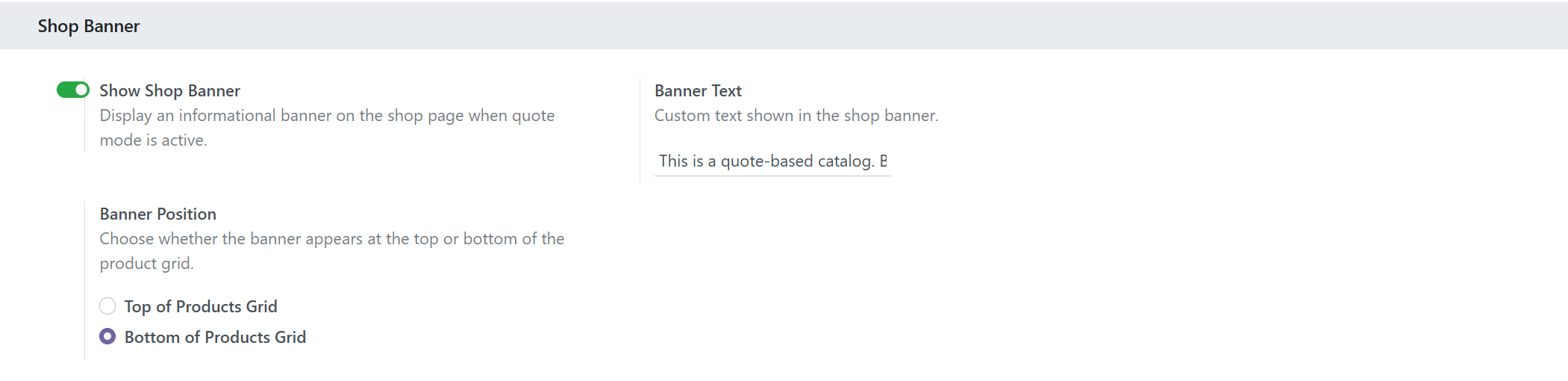
The Shop Banner section lets you display an informational banner on the /shop page:
- Show Shop Banner: Enable/disable the informational banner
- Banner Text: Custom message to inform customers about the quote-based catalog (default: "This is a quote-based catalog. Browse products and request a quote — our team will respond with pricing.")
- Banner Position: Choose between "Top of Products Grid" or "Bottom of Products Grid"
When "Require Login" is enabled, the banner automatically includes a "Log in to request a quote" button for guest users, creating a seamless authentication flow.
[Frontend] Shop & Product Pages
See the quote experience from the customer's perspective
Shop Grid — Quote Button & Request Price
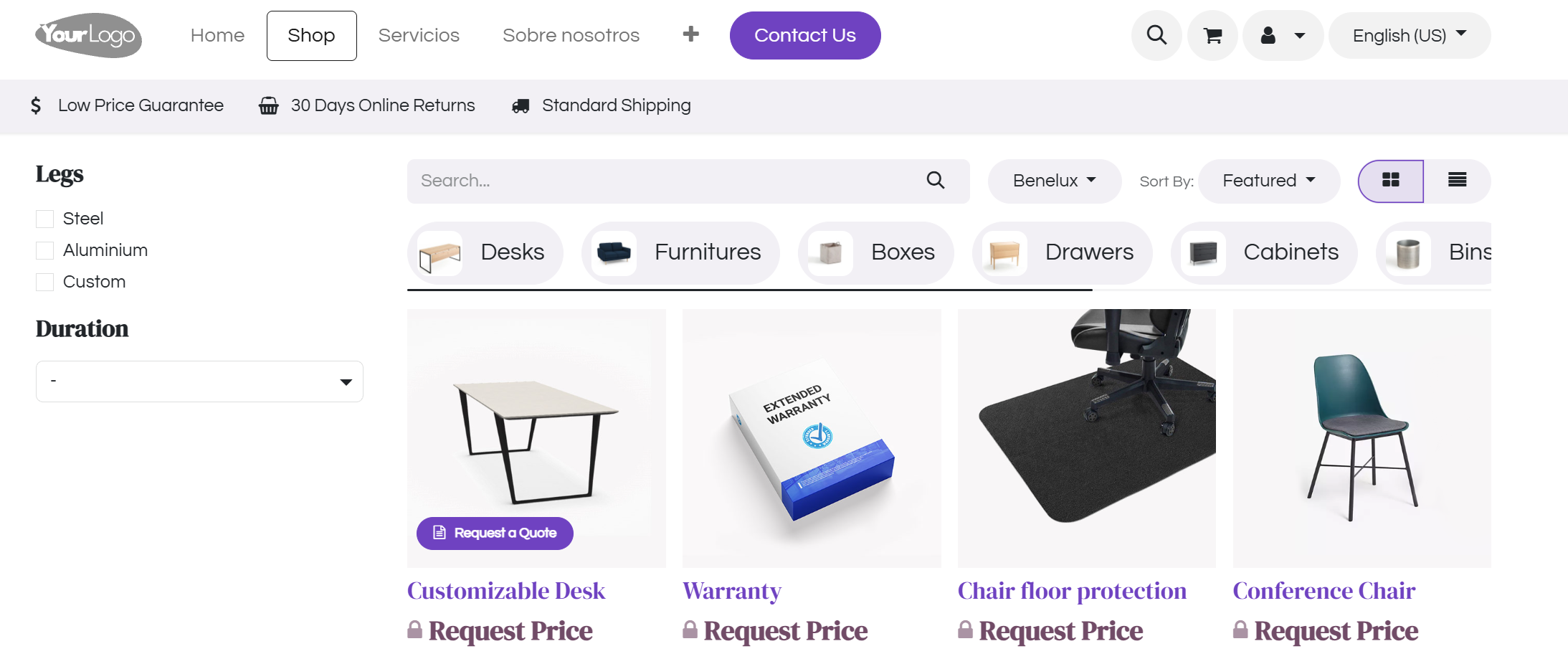
When browsing the /shop page, products in quote mode display the "Request a Quote" button directly on the product card. If the Hide Prices option is enabled, prices are replaced with a "Request Price" badge featuring a lock icon — clearly communicating that pricing requires a quote request. Works seamlessly in both grid and list views.
Product Detail Page
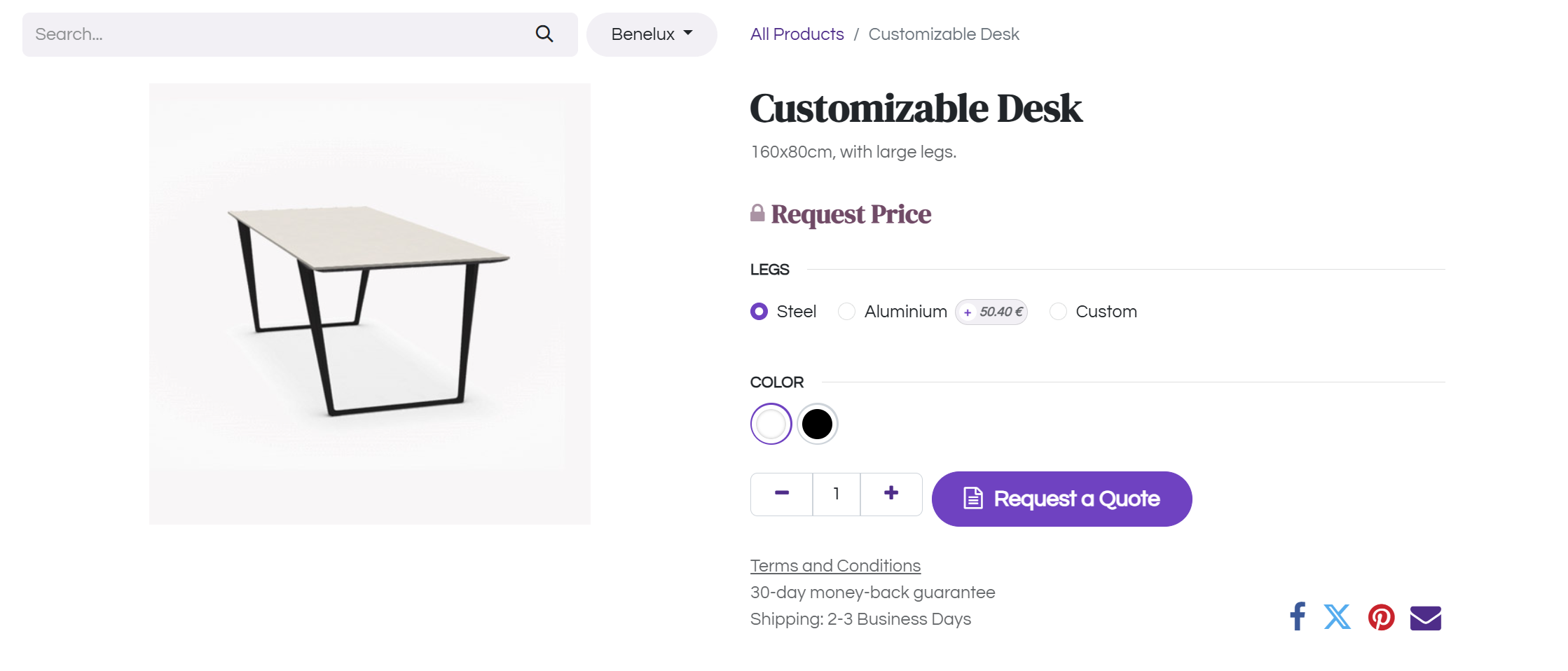
On the product detail page, the standard "Add to Cart" button is replaced with a prominent "Request a Quote" button. When prices are hidden, the product price shows "Request Price" in large bold text with a lock icon. The quote button captures the current quantity from the quantity selector and opens the quote request modal with the selected product and quantity pre-filled.
[Flow] Quote Request User Journey
From authentication to successful submission
Sign In Required Modal
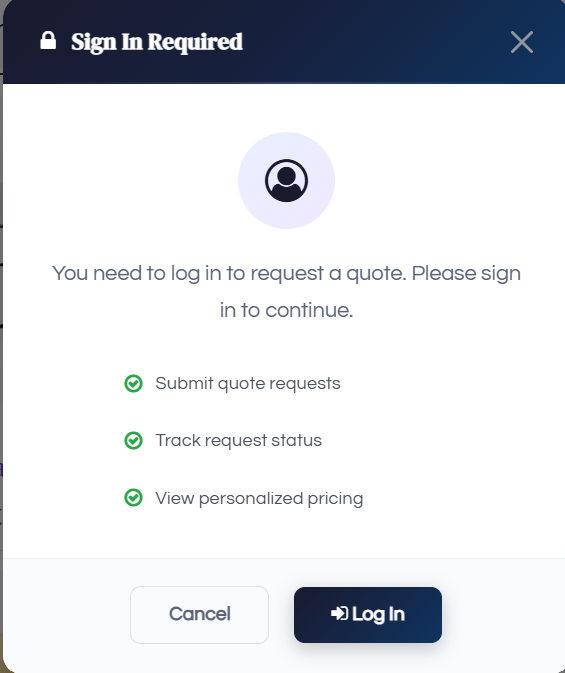
When Require Login is enabled and a guest user clicks "Request a Quote",
this elegant dark-themed modal appears. It displays a customizable message, lists the
benefits of signing in (submit requests, track status, view personalized pricing), and
provides clear "Log In" and "Cancel" buttons. Clicking
"Log In" redirects to /web/login.
Shop Banner — Bottom Position

When the banner position is set to "Bottom of Products Grid", the informational banner appears below all products. It features a file-text icon, the customizable banner text, and — when login is required — a "Log in to request a quote" button for guest users. The banner uses a clean alert-info style with a left accent border.
Quote Request Modal
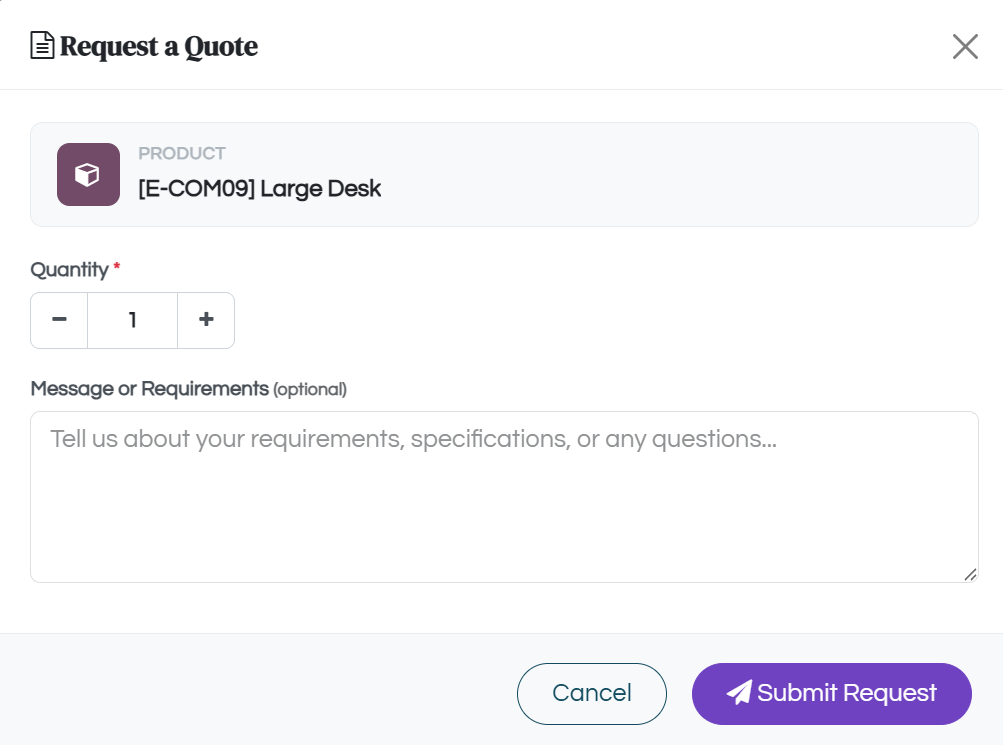
The Quote Request Modal is the core submission interface:
- Product Info Card: Displays the product name with a cube icon
- Quantity Stepper: Plus/minus controls with manual input, minimum 1
- Message or Requirements: Textarea for customer specifications (configurable show/required)
- Contact Fields: Name, Email, Phone, Company, Address — visibility and required status controlled by settings
- Error Display: Red alert box showing validation errors in real-time
- Actions: "Submit Request" button with paper-plane icon and "Cancel" to dismiss
For logged-in users, contact fields are pre-filled from their partner profile. The form validates all required fields before submission.
Submission Success
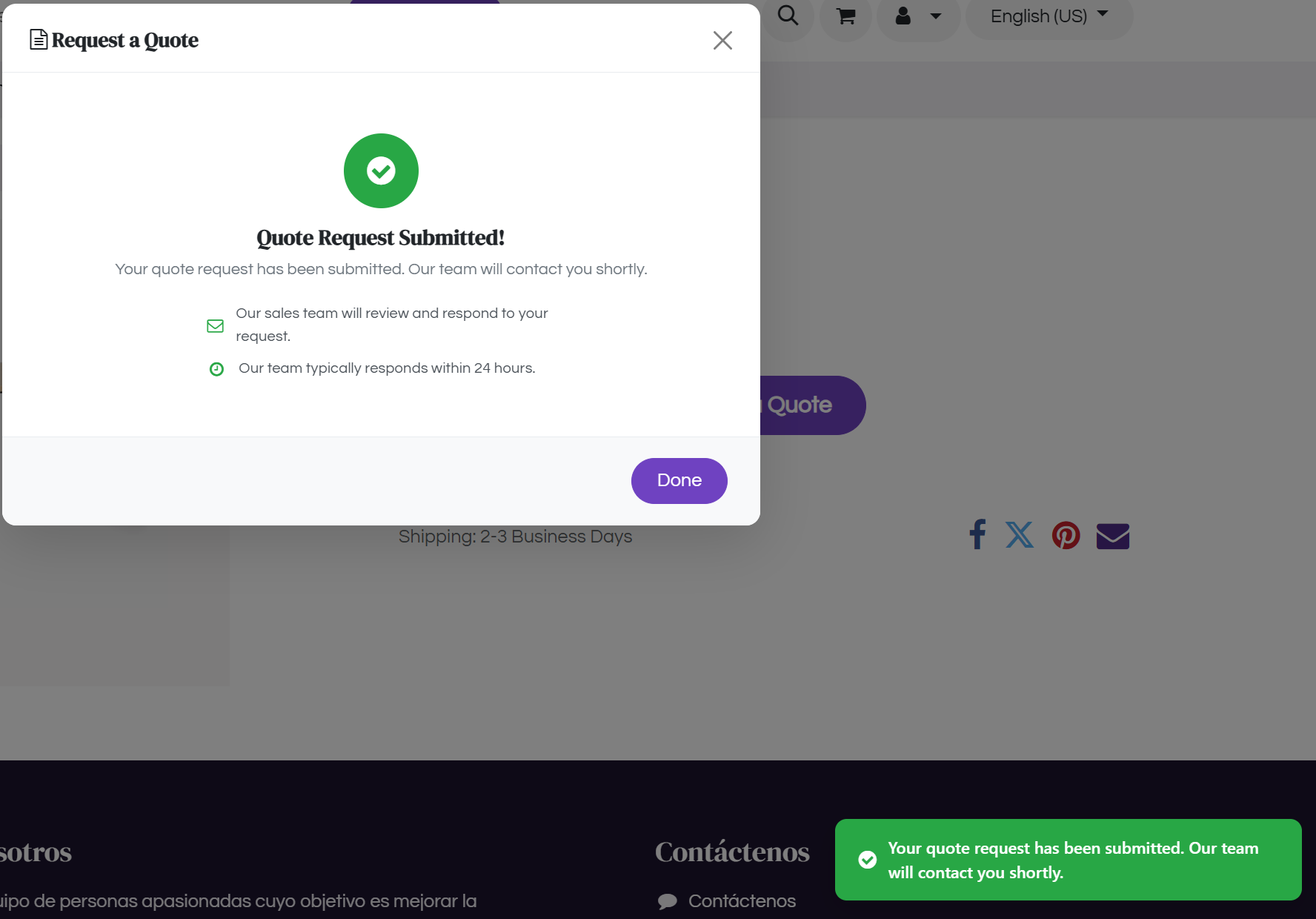
After successful submission, the modal transforms to show a success state:
- Green Checkmark Icon: Large circular success indicator
- "Quote Request Submitted!" Title with confirmation message
- Info Details: "Our sales team will review and respond within 24 hours"
- Done Button: Dismisses the modal
Additionally, a green toast notification slides in from the bottom-right corner saying "Your quote has been submitted" with a check-circle icon, auto-dismissing after 4 seconds.
[Emails] Automated Email Notifications
Two professionally designed email templates
The module includes two beautifully styled email templates with responsive HTML layouts, gradient headers, and clear call-to-action buttons. Each can be independently enabled or disabled from the settings panel.
Customer Confirmation Email
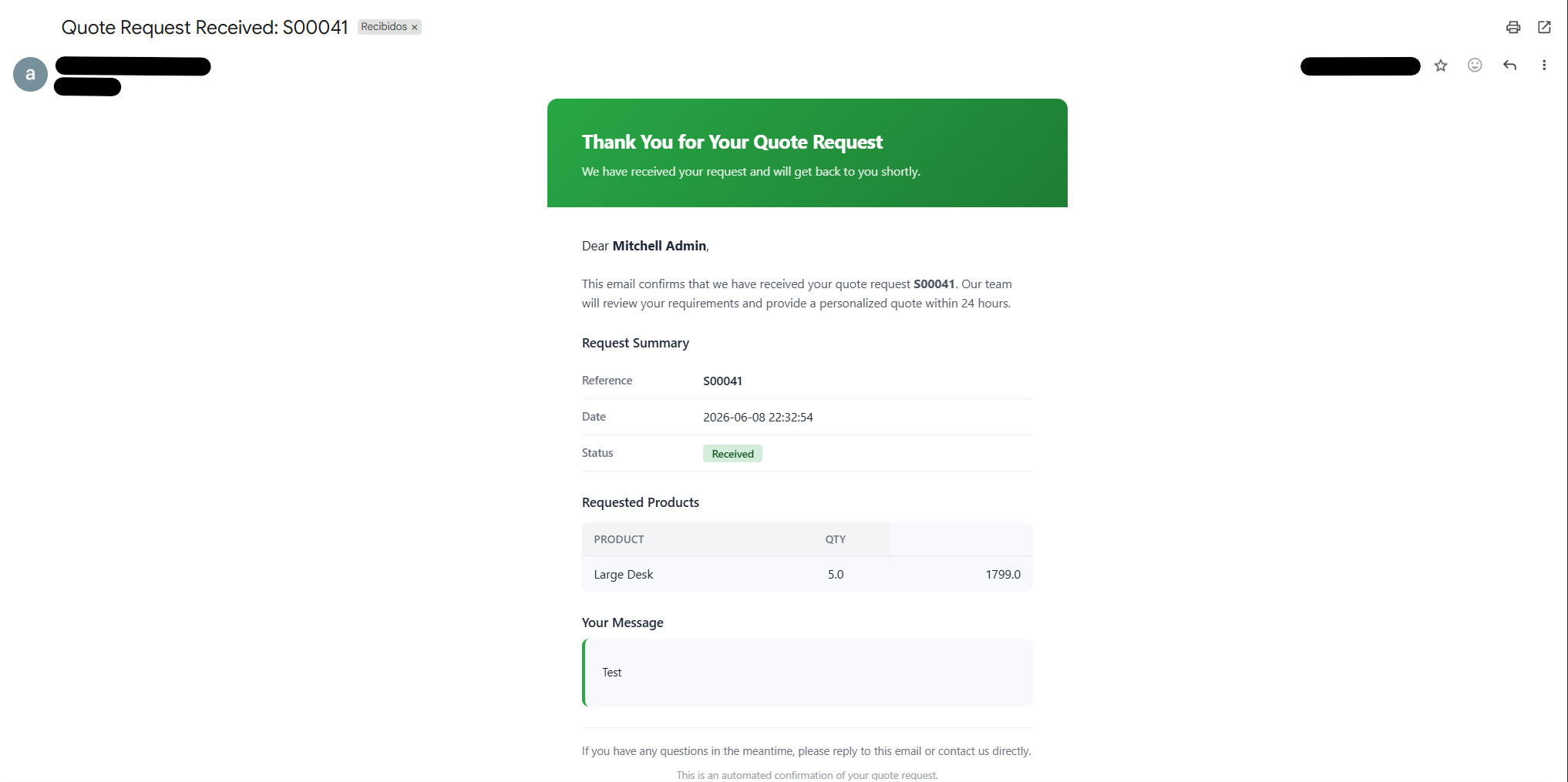
Sent to the customer when "Send Confirmation to Customer" is enabled:
- Green Gradient Header: "Thank You for Your Quote Request" with reassuring tone
- Personalized Greeting: "Dear [Customer Name]," for a personal touch
- Request Summary: Reference number, date, and "Received" status badge
- Requested Products: Table with product names and quantities
- Customer Message: Shows their submitted message in a green-accented block
- Response Promise: "Our team will respond within 24 hours"
Sales Team Notification Email
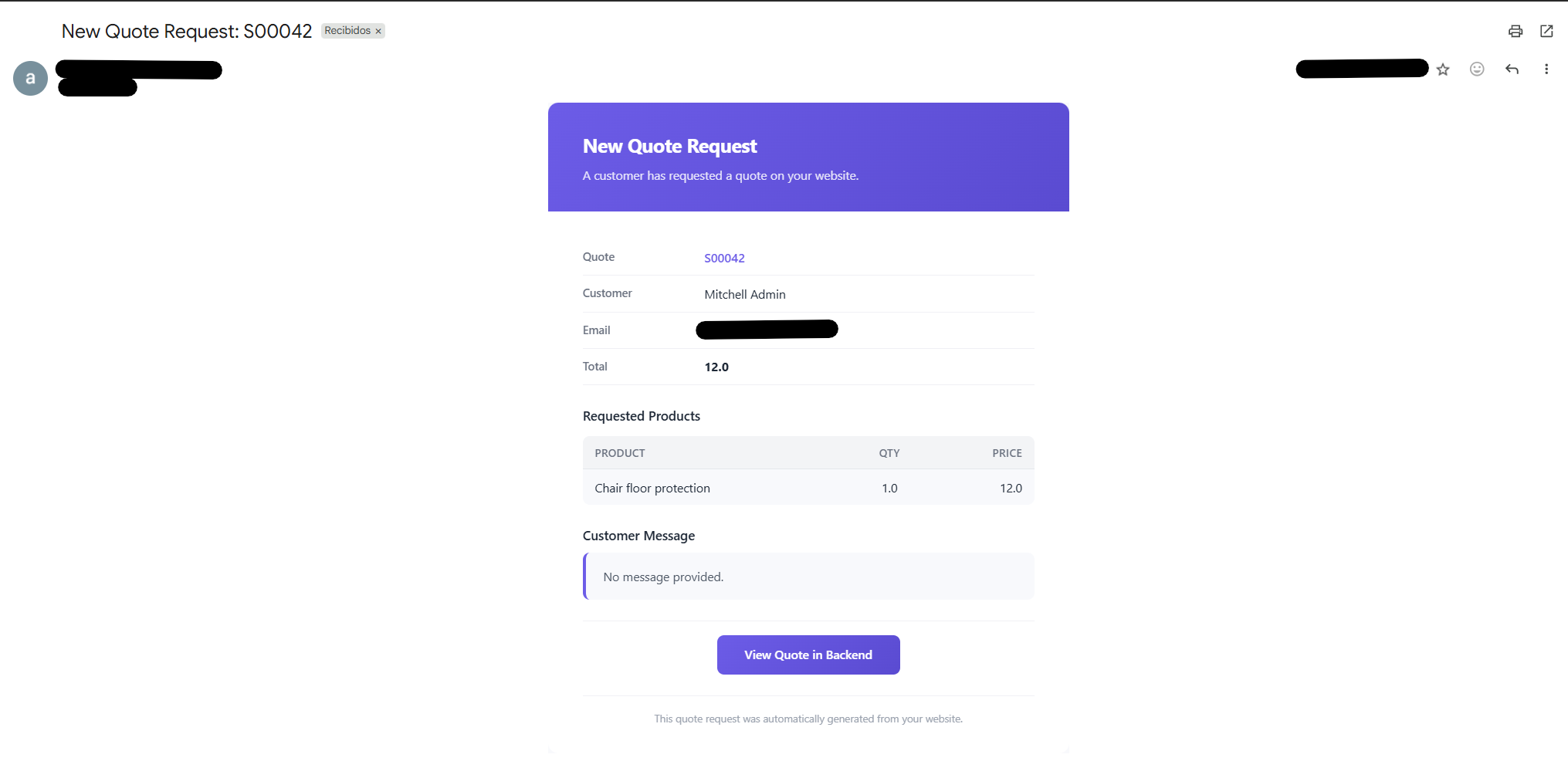
Sent to the sales team when "Notify Sales Team" is enabled:
- Purple Gradient Header: "New Quote Request" with matching brand colors
- Customer Details: Name, email (clickable mailto link), and total amount
- Requested Products Table: Product name, quantity, and price per item
- Customer Message: Full message displayed in a purple-accented quote block
- "View Quote in Backend" CTA: Direct link to the draft Sales Order in Odoo backend
The email is sent to the company's email address configured in Odoo settings, ensuring your sales team never misses a quote request.
Complete Feature Breakdown
Every detail of the module explained
Quote Scope Options
- All Products: Every published product on your website requires a quote
- Per-Product Configuration: Toggle quote mode individually via the "Quote" tab on each product form
- Selected Products: Pick specific products from a multi-select list
- Selected Categories: All products within chosen categories become quote-only
Price Hiding
- Hides prices on both shop grid and product detail pages
- Shows "Request Price" badge with lock icon instead of monetary values
- Server-side rendering prevents price flash on page load
- JavaScript fallback ensures prices stay hidden after AJAX updates
Grid Button Control
- Toggle "Request a Quote" button visibility on shop grid/list cards
- When hidden, customers must visit product detail page to request a quote
- Server-rendered button with JS event delegation for dynamic content
Quote Request Form Fields
- Full Name: Show/hide, required/optional (default: shown, required)
- Email Address: Show/hide, required/optional (default: shown, required)
- Phone Number: Show/hide, required/optional (default: shown, optional)
- Message or Requirements: Show/hide, required/optional (default: shown, optional)
- Company: Show/hide, required/optional (default: hidden)
- Address: Show/hide, required/optional (default: hidden)
Fields are dynamically shown for guest users based on settings. For logged-in users, only missing required fields are displayed. Pre-filled values come from the user's partner profile.
Quantity Stepper
- Plus/minus buttons for easy quantity adjustment
- Manual text input with validation (minimum 1)
- Auto-correction: non-numeric or zero values reset to 1
- Product detail page captures the current quantity selector value
Toast Notifications
- Slide-in green toast from bottom-right corner
- Auto-dismisses after 4 seconds with smooth animation
- Check-circle icon for positive feedback
- Maximum width of 400px for readability
Technical Specifications
Built with Odoo best practices
Dependencies:
- base
- web
- website
- website_sale
- product
- sale
- sales_team
Compatibility:
- Odoo 17.0 Community Edition
- Odoo 17.0 Enterprise Edition
- Bootstrap 5 compatible
- Works with all standard themes
API Endpoints:
/shop/quote-only-products— Get quote configuration for frontend/shop/products/name— Get product name by ID/shop/request-quote— Submit a quote request (creates Sales Order)
File Structure:
ecommerce_b2b_quote_request/
├── controllers/main.py
├── data/default_config.xml
├── models/
│   ├── product_template.py
│   ├── res_config_settings.py
│   └── sale_order.py
├── security/
│   ├── security.xml
│   └── ir.model.access.csv
├── static/
│   └── src/
│       ├── css/quote_request.css
│       └── js/quote_request.js
├── views/
│   ├── product_view.xml
│   ├── res_config_settings_view.xml
│   └── website_templates.xml
└── i18n/
    ├── en.po
    └── es.po
Perfect For
Ideal for these business types
- B2B Wholesalers — Let customers browse your catalog and request personalized bulk pricing
- Manufacturers — Hide list prices and negotiate custom quotes per customer
- Service Businesses — Offer configurable products with variable pricing
- Custom Products — Collect customer requirements before providing a price
- Distributors — Manage tiered customer pricing through quote requests
- Contractors — Project-based pricing with custom requirements collection
- OEM Suppliers — Hide standard prices and negotiate per-order
- Any B2B Store — Replace direct purchasing with a consultative sales approach
Installation
Quick and easy setup
- Copy the
ecommerce_b2b_quote_requestfolder to your Odoo addons directory - Restart your Odoo server
- Go to Apps → Update Apps List
- Search for "Request for Quote"
- Click Install
- Navigate to Settings → Request for Quote to configure
- Enable the module and configure your preferred scope, form fields, and notifications
Upgrade for Pricing Tools
Need tiered pricing tables, MOQ enforcement, and savings messages?
The perfect companion to turn your quote catalog into a full B2B selling machine.
Support
For technical support or feature requests, contact [email protected]
Request for Quote v1.1.1 | Developed by Hexalian LLC
License: OPL-1. This software is provided "as is", without warranty of any kind.
Related Odoo modules (Odoo 17)
Before You Buy
- Confirm your Odoo version: v17, v18, v19.
- Review module scope carefully to validate your exact use case.
- Plan installation on staging first, then deploy to production.
- Need help evaluating fit? Email [email protected].
Secure checkout · No account required
Download link sent to your email after payment. Lost your link?
Powered by Stripe
- 100% source code included
- Lifetime access to download
- Odoo 17 & 18 & 19 supported
- Email delivery (72h link)
- Sold as-is under OPL1 — all sales final
Production-grade Odoo modules with full source code.